Unassigned Traffic in Google Analytics 4: What It Means and How to Fix It in 2026
If you’ve ever opened your Google Analytics 4 traffic acquisition report and spotted a mysterious row labeled “Unassigned,” you’re not alone. For businesses relying on multi-channel marketing efforts to drive growth, this ambiguous bucket can undermine ROI analysis and obscure where your best conversions actually come from. Let’s break down exactly what Unassigned means, why it happens, and how to fix it.
Key Takeaways
- Unassigned traffic appears when Google Analytics 4 cannot match a session’s source/medium to any default or custom channel rule—it’s GA4’s catch-all bucket for traffic it can’t classify.
- The most common controllable causes are bad or missing UTM parameters, tag firing order issues in Google Tag Manager, cross-domain setup problems, and Measurement Protocol misconfigurations from server-side tracking.
- Some Unassigned traffic is expected and not fully fixable, including recurring subscription payments without active sessions, consent-related gaps, and certain bot traffic patterns.
- Normal Unassigned levels hover around 3-10% for typical B2B and B2C sites in 2026; sudden jumps (e.g., from 5% to 25%) usually signal implementation issues requiring immediate attention.
- TG helps established businesses audit GA4 properties, standardize UTMs across marketing campaigns, and redesign tracking architectures to turn Unassigned into actionable, conversion-focused channel data.
What Is “Unassigned” Traffic in Google Analytics 4?
Unassigned is a default channel group value that GA4 uses when its channel rules cannot classify website traffic based on the available session source data. Think of it as GA4’s way of saying, “I received this traffic, but I don’t know which marketing channel it belongs to.”
Under normal circumstances, GA4’s session default channel group places traffic into recognized categories like Organic Search, Paid Search, Paid Social, Direct, Referral, and others. But when a session’s source/medium combination doesn’t match any of these predefined rules, GA4 drops it into the Unassigned bucket.
This is fundamentally different from Direct traffic. Direct is a valid, recognized channel—it represents user visits where someone typed your URL directly, used a bookmark, or came from an untrackable source. Unassigned, on the other hand, is a catch-all for traffic GA4 simply cannot categorize based on its rule-based matching system.
Here’s a concrete example: if you tag a campaign URL with utm_medium=pdf (for a downloadable PDF link) or utm_medium=sms_blast_march2026 (for an SMS campaign), that traffic will likely fall into Unassigned. Why? Because GA4’s default channel grouping rules don’t include “pdf” or “sms_blast_march2026” as recognized medium values.
Google’s ruleset for default channel grouping is documented and periodically updated—with notable refinements in 2024-2025—but these updates haven’t eliminated Unassigned issues. The rules are strict, and any deviation from expected values pushes traffic into this ambiguous category.
For established businesses relying on multi-channel marketing campaigns, high Unassigned traffic is more than an analytics nuisance. It actively undermines budget decisions, attribution data accuracy, and your ability to identify which traffic sources actually drive conversions.
How to See and Diagnose Unassigned Traffic in GA4 Reports
Finding Unassigned traffic in your reports is straightforward once you know where to look. Here’s how to locate it and start understanding what’s actually behind that mysterious bucket.
Step 1: Navigate to Traffic Acquisition
In your GA4 property, go to Reports > Acquisition > Traffic acquisition. By default, this report shows sessions grouped by Session default channel group.
Step 2: Locate the Unassigned Row
Scroll through the table until you find the “Unassigned” row. Note the session counts, users, engagement metrics, and conversions associated with this traffic.
Step 3: Apply Secondary Dimensions
This is where diagnosis begins. Click the “+” icon to add a secondary dimension and select options like:
- Session source/medium
- Session campaign
- Session default channel group (First user)
- Landing page
These dimensions reveal the underlying patterns—you’ll often see recurring (not set) values or custom mediums like “newsletter,” “pdf,” or platform-specific tags that don’t match GA4’s rules.
Step 4: Exclude Recent Data
Exclude the most recent 24-48 hours from your date range. GA4’s data processing delays can temporarily inflate Unassigned and (data not available) values as sessions await full attribution. Looking at data from 48+ hours ago gives you a more accurate picture.
Step 5: Create an Exploration Report
For deeper analysis, build an Exploration report filtering Session default channel group equals Unassigned. Segment by source/medium, landing page, device category, or event count to identify clusters. You might discover all your Unassigned traffic comes from a specific email platform (like MailerLite), payment webhooks, or SMS partners.
Step 6: Maintain a Running List
Keep a document logging recurring Unassigned patterns you discover—traffic with medium values like “app,” “bot,” or certain partner platforms. This list becomes your roadmap for targeted fixes or custom channel rules.
How GA4 Classifies Traffic—and Why It Falls Into Unassigned
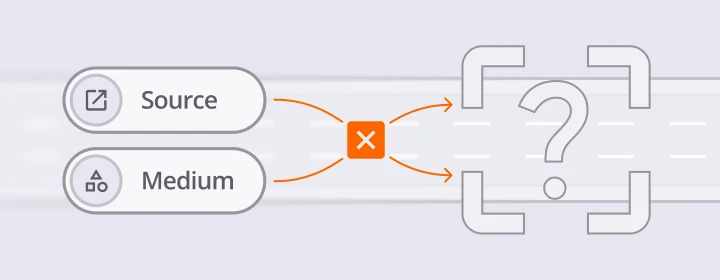
Understanding GA4’s classification logic is essential before you start changing UTMs or tag setups. Otherwise, your fixes might simply move traffic from Unassigned to another incorrect channel.
GA4’s acquisition model populates traffic source dimensions at the session_start event. These dimensions include source, medium, campaign, and the session default channel group. Once assigned, subsequent events within that same session inherit this attribution unless explicitly overridden.
The classification relies on strict rule-based matching where medium takes precedence:
| Medium Value | Default Channel |
|---|---|
| organic | Organic Search |
| cpc, ppc | Paid Search |
| paid_social | Paid Social |
| display | Display |
| affiliate | Affiliates |
| referral | Referral |
When a session’s source/medium combination doesn’t match any rule—or when these values are missing entirely at session_start—the session gets labeled Unassigned in the default channel group.
Common edge cases that trigger Unassigned include:
- Server-side events sent via Measurement Protocol without proper client identification
- AI/chatbot referrals that lack referrer data
- Non-browser platforms like mobile apps without correctly configured tracking
- Consent-restricted partial sessions where initial hits lack marketing parameters
- Traffic from internal links on microsites or tools that strip UTM parameters
The critical insight: GA4 evaluates channel grouping primarily at session_start. If that event is missing, delayed, or arrives without proper attribution data, the entire user session lands in Unassigned.
UTM Parameters: The Most Common Driver of Unassigned Traffic
In most GA4 properties TG audits, inconsistent or non-standard UTM parameters are the number one controllable cause of Unassigned traffic. The good news? This is also the easiest issue to fix.
Google’s baseline recommendation requires every campaign URL to include utm_source, utm_medium, and utm_campaign (with utm_content and utm_term as optional additions). But the values matter just as much as the presence of these parameters.
Bad vs. Good UTM Examples
| Bad UTM Medium | Why It Fails | Good Alternative |
|---|---|---|
| utm_medium=pdf | Not a recognized GA4 medium | utm_medium=email (if from email) |
| utm_medium=blast | Custom value, no matching rule | utm_medium=email |
| utm_medium=mailerlite | Platform name, not channel type | utm_medium=email |
| utm_medium=igpaid | Abbreviation for Instagram paid | utm_medium=paid_social |
| utm_medium=fb-ad | Custom naming convention | utm_medium=paid_social |
| utm_medium=newsletter | Legacy term | utm_medium=email |
Using custom mediums like these pushes traffic into Unassigned unless you create custom channel groups to handle them—which adds ongoing maintenance complexity.
Building UTM Governance
The most effective fix we’ve seen is creating a shared, dated UTM naming convention document. This typically lives as a spreadsheet (started in 2024 or earlier and updated quarterly) that everyone in marketing, sales, and external agencies must follow.
Tools that help enforce consistency:
- Google’s Campaign URL Builder
- Internal UTM builder tools with dropdown selections
- Spreadsheet templates with validation rules
TG frequently starts GA4 clean-up projects by auditing 3-6 months of campaign URLs, then re-standardizing UTMs so new traffic immediately flows into the correct channels. In e-commerce audits, we’ve seen 20-30% reductions in Unassigned traffic post-standardization.
Quick Fixes for Unassigned Traffic Your Team Can Apply This Week
You don’t need a full analytics rebuild to reduce unassigned traffic. Here’s a practical checklist of quick wins a marketer or analytics owner can implement immediately:
1. Standardize UTMs for all active campaigns
Review every live campaign URL and ensure medium values align with GA4 channel rules: email, cpc, paid_social, display, affiliate, referral, etc.
2. Fix obvious typos
Search your traffic data for typos like “utm_soruce” (instead of utm_source) or “piad_social” that prevent proper attribution.
3. Verify GA4 tags on all production pages
Confirm that your Google tag fires on every page receiving traffic—including landing pages from third-party tools, older microsites, and payment confirmation pages that often feed Unassigned traffic.
4. Set proper tag firing order in GTM
Configure your GA4 configuration/Google tag to fire on “Initialization – All Pages” in Google Tag Manager. Delay non-essential event tags to DOM Ready or Window Loaded so the configuration runs first and establishes the session properly.
5. Audit top 10 Unassigned source/medium pairs
Pull your most common Unassigned combinations from Explorations. Either fix their UTMs or map them into custom channel groups if they represent intentional channels (SMS, partner platforms).
6. Review Reporting Identity settings
Test Device-based reporting (with Google Signals enabled when appropriate) to see if it reduces unexplained Unassigned or (not set) spikes in your attribution data.
7. Schedule recurring reviews
Set a monthly calendar reminder to check the traffic acquisition report specifically for Unassigned trends. Monitor over 30+ day periods to distinguish noise from structural issues—don’t wait until quarter-end when budgets are already spent.
8. Document changes
Keep a changelog of every UTM, tag, or configuration change you make. This proves invaluable when troubleshooting future spikes.
Technical Causes of Unassigned: Tags, Sessions, and Measurement Protocol
Many stubborn Unassigned issues originate from implementation details rather than marketing mistakes. This section dives deeper into technical causes that often require developer involvement.
Missing or Delayed session_start Events
GA4’s attribution depends on the session_start event to establish traffic source dimensions. In custom or server-side setups, this event sometimes fails to fire or arrives late. When that happens, subsequent event data inherits (not set) values for source/medium, landing the entire existing session in the Unassigned channel group.
Tag Firing Order Problems
If GA4 event tags fire before the main Google tag or configuration tag, those events lack proper session attribution. The event tag fires, generates event data, but has no session context to attach to—resulting in Unassigned classification.
The fix: ensure your configuration tag fires first (on Initialization trigger), and event tags fire after (on DOM Ready or later).
Measurement Protocol Issues
Events sent from back-end systems—subscription billing, CRMs, CDPs—via Measurement Protocol require valid client_id, session_id, and timestamp_micros to join an existing session. Without these identifiers, measurement protocol events create standalone sessions attributed to Unassigned, even if they represent legitimate revenue.
This is particularly common when:
- CRM platforms like Segment or Amplitude stream events without session identifiers
- Subscription services send renewal transactions without user context
- Custom data pipelines omit required session data fields
Server-Side GTM Pitfalls
Server side tracking through a server side container introduces additional complexity:
- Inconsistent server_container_url usage across pages
- Mixing hard-coded gtag.js with server side tagging
- Misaligned consent handling between client and server managed implementations
These misconfigurations fragment sessions and generate Unassigned traffic even when client-side implementation looks correct.
Recommendation: Development teams should log and test Measurement Protocol requests in a staging property first, validating that server side events join existing sessions rather than initiating new, unattributed sessions.
TG typically includes a technical audit phase in analytics engagements specifically to review GTM containers, server-side setups, and MP payloads for these Unassigned-related issues.
Cross-Domain, Identity, and Consent: When Unassigned Is a Symptom of Fragmentation
After July 2023’s full GA4 rollout, session fragmentation became a major driver of Unassigned traffic. Privacy protections and multi-domain user journeys complicate what used to be straightforward session tracking.
Cross-Domain Tracking Problems
If user visits jump between www.example.com, shop.example.com, and a third-party checkout domain without proper cross domain tracking configuration, GA4 often starts new sessions with missing or Direct attribution. These fragmented sessions surface as Unassigned in channel reports.
For businesses operating across multiple domains—main site, shop, payment processor, booking engine—correctly configured cross-domain linking is essential.
Misconfigured Referral Exclusions
Your own domain or payment processors (Stripe, PayPal, Shopify checkout domains) can break sessions if not properly excluded. When a user returns from a payment gateway without referral exclusion, GA4 treats it as a new session from that domain—often appearing as Unassigned or incorrectly categorized traffic.
Maintain a current referral exclusion list including:
- All your own domains and subdomains
- Payment gateways
- Authentication providers
- Internal tools that redirect users
Reporting Identity Options
GA4 offers three Reporting Identity settings: Blended, Observed, and Device-based. Some properties see fewer mysterious Unassigned sessions after switching to Device-based reporting, even though underlying data collection doesn’t change. This is because Device-based avoids blending across multiple identifiers that can cause attribution confusion.
Consent Mode Gaps
Advanced consent mode and stricter browser privacy features (Safari’s ITP, Firefox’s ETP) lead to partial sessions where initial hits lack identifiers or marketing data. These partial sessions often contribute to Unassigned and (data not available) in data streams.
For regulated industries or EU-focused businesses, some Unassigned traffic will always persist due to legally-required tracking limitations. Your analytics strategy should account for this reality rather than chase a 0% Unassigned goal.
Recurrence, Bots, and Unavoidable Sources of Unassigned
Not all Unassigned traffic represents a problem you can fix. Understanding which portions are “working as designed” helps set realistic expectations with stakeholders.
Recurring Revenue Events
Subscription businesses often see revenue attributed to Unassigned because billing systems trigger purchase events without concurrent user sessions. When your SaaS platform processes a monthly renewal at 3 AM, there’s no active user’s current session to attribute that transaction to.
Even when merchants send recurring measurement protocol events with user id, GA4 cannot retroactively attach these to the original marketing channel without custom logic or data warehouse processing.
Bot Traffic
Automated hits from bots and crawlers often have:
- No valid referrer
- Broken or missing parameters
- Non-standard user agents
This yields Unassigned or strange (not set) patterns in reports. Bot traffic frequently exhibits telltale signs: 100% bounce rates, zero engagement time, or concentrated hits on specific pages.
Filtering recommendations:
- Use GA4’s built-in bot filtering in data settings
- Implement firewall rules or WAF/CDN tools
- Monitor for sudden spikes in Unassigned sessions with extremely low engagement
Predictive and Audience Triggers
GA4’s audience trigger features and predictive capabilities may generate events outside active sessions. Some of these inherently carry (not set) or Unassigned attribution until Google refines the behavior.
The goal isn’t eliminating all Unassigned traffic—it’s minimizing the preventable share while documenting the remaining unavoidable slice so stakeholders understand its origin.
Creating Custom Channel Groups to Reclaim Unassigned Traffic
Custom channel groups let you “rescue” meaningful traffic that will never match Google’s default channel rules—without changing your raw data.
What Custom Channel Groups Do
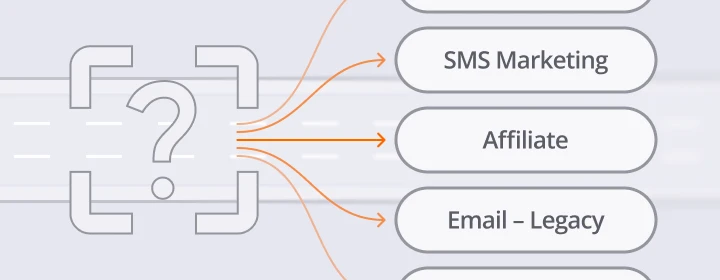
GA4 allows you to create your own channel groupings where you define rules mapping source/medium combinations to channel names you choose. For example:
| Your Custom Rule | New Channel Group |
|---|---|
| medium = “sms” | SMS Marketing |
| medium = “affiliate_network” | Affiliate |
| source = “attentive” | SMS – Attentive |
| source = “klaviyo-sms” | SMS – Klaviyo |
| medium = “newsletter” | Email – Legacy |
Setting Up Custom Groups
Navigate to Admin > Data display > Channel groups in your GA4 property. Create a new channel group and define conditions based on source, medium, campaign, or combinations of these traffic source dimensions.
The key benefit: custom channel grouping doesn’t alter how GA4 stores original hits—it changes how they appear in analysis. This makes it especially helpful for years of historical Unassigned traffic that you can’t retroactively fix at the collection level.
Practical Examples
Consider mapping non-standard email mediums from legacy campaigns (utm_medium=drip, utm_medium=newsletter) into a single “Email – Legacy” custom channel. This separates intentional legacy tracking from truly Unassigned noise.
For organizations with unique go-to-market structures, custom groups can reflect:
- Trade show and event traffic
- Partner portal referrals
- AI chat assistants
- Affiliate sub-networks
Document these custom rules and keep them synchronized with your UTM governance document. Otherwise, new campaigns will revert back to Unassigned over time as teams forget the custom medium values they should use.
TG often builds custom channel groups for clients to accurately represent their actual marketing channel mix—including channels that simply don’t exist in GA4’s default taxonomy.
How TG Helps Brands Turn “Unassigned” Into Clear, Conversion-Focused Insights
At TG, we approach Unassigned traffic as a symptom of broader analytics health—not just a number to minimize. Our role as a B2B full-service digital marketing partner means we combine strategy with hands-on implementation.
A typical engagement starts with a comprehensive GA4 audit: reviewing acquisition reports, GTM/gtag setups, server containers, and Measurement Protocol flows to map all sources of Unassigned traffic. We document every specific traffic source contributing to the problem.
From there, we collaborate with internal marketing, development, and sales teams to:
- Standardize UTM governance across all marketing campaigns
- Fix tag firing sequences and ensure correct configuration
- Implement cross-domain tracking aligned with actual user journeys
- Create custom channel groups that reflect your real go-to-market structure
Our broader services—SEO, PPC, UX & CRO, social media, and local search optimization—all depend on accurate attribution. Reducing Unassigned traffic isn’t a side project for us; it’s central to delivering “Conversions, not Diversions.”
Fixing Unassigned shouldn’t be a one-off cleanup. We position it as part of a long-term analytics and optimization flywheel that supports continuous growth. When your traffic data accurately reflects reality, every marketing decision gets sharper.
Ready to audit your Analytics?
Schedule a consultation with TG to review your current Unassigned traffic, identify the largest drivers, and build a prioritized remediation plan.
Frequently Asked Questions
How much Unassigned traffic is “normal” in GA4?
As of 2026, 3-10% Unassigned traffic is common for typical B2B and B2C sites. This baseline accounts for privacy limitations, bot traffic, recurring revenue events, and other unavoidable sources.
Sudden jumps—say, from 5% to 25% within a week—usually signal a new implementation issue: a broken tag deployment, a new campaign launched without UTMs, or changes in cross-domain behavior that fragment sessions.
Monitor trends over at least 30 days before deciding whether a spike is structural or temporary noise from processing delays. Single-day spikes often resolve themselves; sustained increases require investigation.
Does switching Reporting Identity to Device-based change historical Unassigned data?
Yes, but not through reprocessing. Reporting Identity is a reporting-layer setting, so switching to Device-based can instantly change how historical data appears in reports without re-collecting anything.
In some properties, this reduces Unassigned and (not set) counts because GA4 stops blending across multiple identifiers (like user id and device fingerprints). The underlying traffic data remains unchanged—only how it’s stitched and displayed shifts.
Document any identity setting changes with dates so stakeholders understand why historical numbers may differ when comparing pre- and post-switch periods.
Can Google Ads auto tagging alone prevent Unassigned traffic?
No. Auto tagging via gclid improves attribution for Google Ads campaigns specifically, but it doesn’t address Unassigned issues from other channels—email, organic social, SMS, third-party ad platforms, or affiliate networks.
You still need proper UTMs for non-Google platforms and a correctly configured GA4 implementation to prevent Unassigned across your full marketing mix. Even auto-tagged clicks can appear as Direct or Unassigned if misconfigured redirects or landing page templates strip the GCLID parameter before the Google tag fires.
Should I retroactively reprocess historical Unassigned data in GA4?
GA4 does not allow reprocessing of historical hits, so you cannot truly “fix” old Unassigned data at the collection level. The traffic is stored as it was originally captured.
Instead, use custom channel groups to recategorize historical sessions for analysis purposes. For deeper analysis, export data to BigQuery and apply SQL logic to reclassify Unassigned sessions based on patterns you’ve identified.
Focus engineering and tagging effort on getting future data right while using derived models or custom groupings to make past Unassigned traffic categorized and interpretable in reports.
Is it worth investing in server-side GTM or CDP streaming if I’m already struggling with Unassigned?
Server-side setups and CDP integrations can improve data control, bypass ad blockers, and increase tracking resilience—but they also add complexity. Implemented incorrectly, they can actually increase Unassigned traffic through misaligned session identifiers and fragmented measurement protocol events.
The pragmatic approach: stabilize your basic GA4 + GTM implementation and UTM standards first. Once your client-side tracking setup produces clean attribution data, layer in server-side tracking or CDP streaming with a clear Measurement Protocol plan that includes proper client id and session id handling.
TG often helps clients phase these upgrades systematically—starting with clean client-side implementation, then adding server-side capabilities once attribution fundamentals are solid and teams understand the maintenance requirements.