Direct Traffic in Google Analytics: What It Is, Where to Find It, and How to Fix Your Data
Direct traffic in Google Analytics 4 is one of the most confusing and misinterpreted metrics. Many people assume it only reflects people typing a URL directly into their browser, but in GA4, the reality is far more complex. Before you can trust your acquisition data or make smart budget decisions, it’s critical to understand what “Direct” actually means, why it shows up, and when it’s signaling a real problem with your analytics tracking.
Quick answer: What “Direct” traffic means in GA4
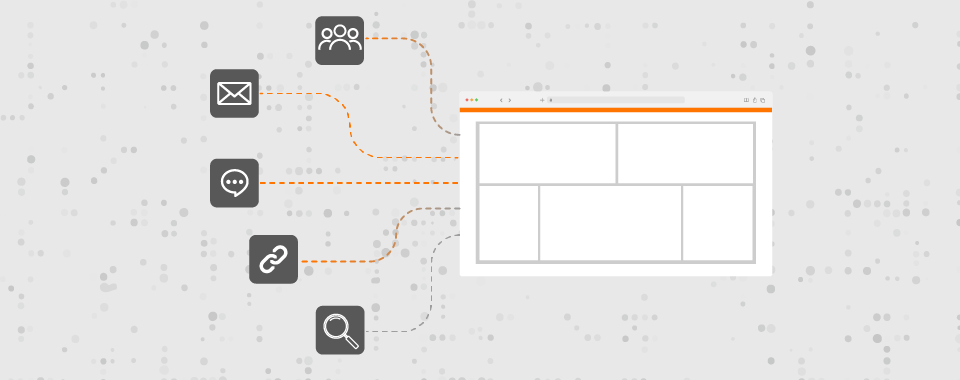
Direct traffic in Google Analytics represents website visits where the platform cannot determine where the visitor came from. When GA4 labels a session as “Direct,” it means the referrer information was missing, stripped, or otherwise unavailable—not necessarily that someone typed your URL directly into their browser.
This distinction matters more than most marketers realize. While direct visits do include people typing timmermanngroup.com into their address bar, using bookmarks to saved pages, or clicking links from sales decks and proposals, the Direct bucket also catches all the traffic that GA4 simply couldn’t classify elsewhere. Think of it as the analytics equivalent of an “uncategorized” folder.
Common real-world examples of legitimate direct traffic include:
- Users typing your website address directly into the search bar
- Visitors clicking bookmarked links to your pricing or services pages
- Returning users whose browsers autocomplete your URL
- Prospects opening saved links from email clients or downloaded PDFs
The challenge for marketers is that misclassified direct traffic hides which SEO, PPC, email, and social campaigns are actually working. When you can’t see that a lead came from your LinkedIn campaign or email newsletter, you can’t properly credit those marketing efforts or make informed budget decisions.
A healthy direct traffic share typically falls in the 5–20% range for most established websites. When direct traffic numbers consistently climb above 30%, that’s usually a signal of tracking or configuration issues rather than a sudden surge in brand awareness.
In the sections ahead, we’ll show you exactly where to find direct traffic data in GA4, what causes inflated numbers, and how to fix the most common problems.
Where to find direct traffic in Google Analytics 4
GA4 surfaces direct traffic data primarily through its Acquisition reports, with additional analysis options available through the Explorations feature. Understanding where to look—and how to slice the data—is the first step toward making sense of your direct visitors.
Step-by-step navigation to direct traffic
To see direct traffic in your Google Analytics account:
- Open GA4 and navigate to Reports in the left-hand menu
- Click Acquisition
- Select Traffic acquisition
This traffic acquisition report displays all your traffic sources broken down by session default channel group. Look for the row labeled “Direct” to see sessions, users, engaged sessions, and conversions attributed to this channel.
Filtering and analyzing direct traffic
To focus exclusively on direct sessions:
- Click Add filter at the top of the report
- Set the dimension to “Session default channel group”
- Set the condition to “exactly matches”
- Select “Direct” as the value
- Apply the filter
For deeper analysis, add a secondary dimension by clicking the plus sign next to the primary dimension. Adding “Landing page + query string” reveals which pages direct visitors are landing on first—a valuable insight for identifying patterns in your traffic.
Building custom explorations
For more detailed analysis, use the Explore feature:
- Navigate to Explore in the left menu
- Select Free form exploration
- Add dimensions like landing page, device category, country, and city
- Add metrics such as sessions, conversions, and engagement rate
- Apply a filter to include only Direct traffic
Agencies like Timmermann Group routinely build custom GA4 views and dashboards around direct vs. non-direct traffic for clients, making it easier to spot anomalies and track improvements over time.
What actually causes direct traffic in GA4?
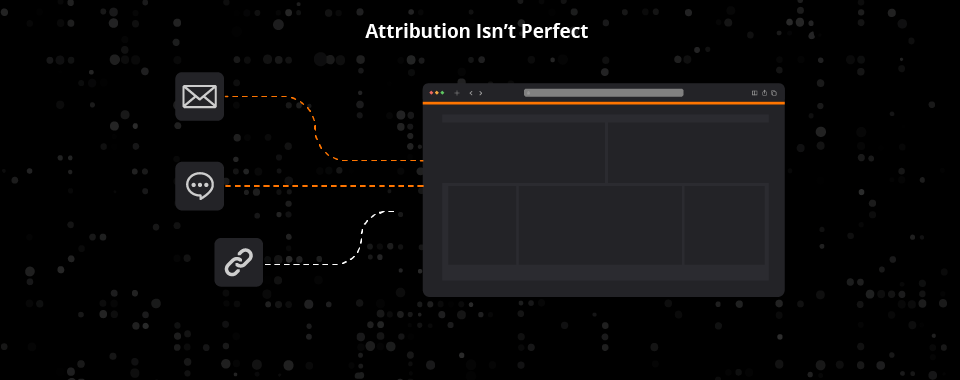
Direct traffic is a mix of legitimate direct visits and sessions where attribution data went missing somewhere along the way. Understanding these causes helps you distinguish between traffic you can’t control and traffic you’re simply not tracking correctly.
The “good” causes of direct traffic are straightforward:
- Users typing your URL directly
- Visitors using browser bookmarks
- People using browser autocomplete or history
The “invisible” causes are where things get complicated:
- Dark social shares (Slack, WhatsApp, SMS, email forwards)
- Clicks from mobile apps that don’t pass referral data
- Links in non-web documents like PDFs and presentations
Then there are the technical causes—the ones you can actually fix:
- Missing or broken utm parameters on campaign links
- JavaScript-based redirects that strip referrer information
- Pages without proper tracking code installed
- HTTP to HTTPS transitions that lose referral source data
- Cookie consent tools and browser privacy features
In B2B especially, direct traffic can spike around trade shows, email blasts, and sales enablement activities when links aren’t properly tagged. A prospect clicking a link in a proposal PDF shows up as direct traffic unless you’ve added tracking parameters to that URL.
Manual entries, bookmarks, and returning visitors
GA4 treats a session as Direct when users type the URL (like timmermanngroup.com/services), click a bookmark, or use browser autocomplete to navigate. These represent genuine brand familiarity—people who know your site well enough to access it directly.
Many of these direct users originally found your site through organic search, paid search, or social media. Their first visit might have been attributed correctly, but subsequent bookmark visits appear as Direct because there’s no referral data to capture.
GA4’s session-based attribution makes it impossible to distinguish “true” manual url entry from other unknown sources in the Direct bucket. You can’t separate someone who typed your URL from someone whose referrer information was stripped by their browser.
What you can do:
- Treat long-engagement, multi-page direct sessions as a sign of real brand familiarity
- Pair GA4 data with qualitative methods like “How did you hear about us?” fields on lead forms
- Accept that some portion of direct traffic represents your marketing efforts paying off over time
Dark social and untagged links
Dark social refers to shares and clicks from private or semi-private channels—Slack, Microsoft Teams, WhatsApp, SMS, and direct email forwards. Industry studies estimate that 70–80% of all link sharing happens through these dark social channels, and much of that traffic appears in GA4 as Direct.
Consider these common B2B scenarios:
| Scenario | Why it shows as Direct |
|---|---|
| Prospect clicks a link in an emailed PDF proposal | Email clients often strip referrer data |
| VP shares a case study link in a Slack channel | Slack doesn’t pass referrer information |
| Salesperson pastes a URL into LinkedIn DMs | Direct messages don’t include referrer headers |
| Colleague forwards an email with your newsletter link | The forward breaks the attribution chain |
These sources don’t send referrer data to websites, so GA4 has no choice but to label these sessions as Direct. The traffic appears as if visitors typed the URL when they actually clicked a shared link.
To reclaim some of this hidden traffic, use UTM-tagged links in:
- Email marketing campaigns
- Sales enablement decks and one-pagers
- Downloadable PDFs and resources
- Internal communications about campaigns
Non-web documents and offline materials
Clicks from PDFs, Word documents, PowerPoints, Google Slides, and desktop applications typically don’t pass referrer information to GA4. This creates a persistent source of misattributed direct traffic that many organizations overlook.
Common scenarios that drive misattributed traffic:
- PDF spec sheets and datasheets emailed to prospects
- Pricing one-pagers shared during sales conversations
- Print brochures with QR codes linking to your site
- Event signage directing attendees to specific landing pages
- Proposals with embedded links to case studies
The solution is adding utm parameters to every URL in these assets. For example, a QR code at a 2026 trade show might use:
https://timmermanngroup.com/services?utm_source=tradeshow&utm_medium=qr&utm_campaign=expo_2026With this tracking in place, that traffic appears in GA4 under your campaign data rather than inflating your website’s direct traffic.
One important caveat: old downloaded documents can’t be retroactively updated. If you’ve already distributed hundreds of PDFs with untagged links, those will continue generating direct traffic until they’re replaced. Improvements only apply from the date you start using updated files.
Technical and configuration issues
A surprisingly large portion of direct traffic comes from fixable technical problems rather than user behavior. These issues are often invisible until you specifically audit for them.
Common technical culprits include:
| Issue | Impact on Direct Traffic |
|---|---|
| Missing tracking code on some pages | User lands on untracked page, moves to tracked page—appears as Direct |
| GA4/GTM not installed on error pages | 404 visits create gaps in tracking |
| Redirect chains that drop UTMs | Campaign parameters lost before reaching landing page |
| JavaScript-based redirects | Referrer stripped during client-side redirect |
| Incorrect referral exclusion settings | Self-referrals classified as Direct |
When a visitor lands on an untracked page and then navigates to a tracked page, GA4 often logs that session as Direct because it missed the initial entry point with its referrer information.
Regular analytics audits catch these problems before they significantly skew your data. Timmermann Group performs quarterly audits for clients to identify new pages, microsites, or landing pages that launched without proper tracking code.
Worth noting: GA4 processing bugs can occasionally cause one-day direct traffic spikes. Known GA4 issues (like those reported in November 2023) caused temporary data anomalies that couldn’t be retroactively fixed. If you see a single-day spike that immediately corrects itself, processing issues may be the cause.
Privacy changes, cookies, and browser behavior
Modern privacy settings have fundamentally changed how web tracking works. Safari’s Intelligent Tracking Prevention (ITP), Firefox’s Enhanced Tracking Protection (ETP), Chrome’s evolving privacy sandbox, and widespread ad blocker usage all affect your ability to track traffic accurately.
These privacy features impact direct traffic in several ways:
- Shortened cookie lifetimes mean returning users whose cookies expired appear as new direct sessions
- Blocked tracking scripts prevent GA4 from capturing referrer information
- iOS “Open in…” behavior strips referrer data when users open links from apps
- Some Android app behaviors similarly ignore or remove referrer headers
Returning users whose cookies have expired may appear as new direct sessions because GA4 cannot tie them back to their original sources. A user clicks who first visited from organic search three months ago might show as Direct on their return visit if their browser cleared cookies.
While server-side tagging and first-party data strategies can help reduce this friction, some privacy-driven direct traffic is simply unavoidable. The best approach is to treat Direct as a “noisier” channel in the post-2020 privacy landscape and look for patterns rather than obsessing over perfect attribution.
How to read and interpret your direct traffic
Marketers shouldn’t judge direct traffic only by volume. Engagement quality and conversion behavior reveal whether your direct visitors represent genuine brand familiarity or tracking failures.
Comparing Direct to other channels
In the traffic acquisition report, compare Direct traffic against other channel groups on these key metrics:
| Metric | What High Values Mean for Direct | What Low Values Mean for Direct |
|---|---|---|
| Average engagement time | Real visitors exploring your site | Possible bot traffic or bounce issues |
| Pages per session | Engaged users navigating content | Single-page visits or misattribution |
| Conversion rate | High-intent returning visitors | Traffic that doesn’t match your audience |
| Bounce rate | Quick exits—potential spam | Engaged sessions (lower is better) |
High engagement metrics paired with strong conversion rates suggest genuine direct visitors—people familiar with your brand who came to complete a specific action. Low engagement with high bounce rates often signals spam, bot traffic, or severely misattributed sessions.
Breaking down Direct by dimensions
Use the traffic acquisition report to segment direct traffic by:
- Device category: Mobile vs. desktop patterns can reveal app-related attribution issues
- Country/City: Geographic anomalies might indicate bot traffic or VPN usage
- Landing page: Which pages direct visitors arrive on first
If direct traffic primarily lands on deep pages rather than your homepage, that often indicates untagged links from emails, documents, or campaigns rather than true manual URL entry.
Tracking trends over time
Examine direct traffic trends alongside your marketing activities:
- Spikes when new campaigns launch (without proper UTMs)
- Drops after fixing tracking issues
- Seasonal patterns around events or trade shows
- Correlation with email sends or content publication
Segmenting direct traffic into new vs. returning users helps distinguish between discovery problems and a healthy base of loyal website visitors. High returning-user rates in Direct often reflect brand strength, while high new-user rates might indicate attribution failures.
At Timmermann Group, we often build Looker Studio dashboards that color-code direct traffic health for clients—green for normal ranges, yellow for concerning levels, red for immediate investigation.
How to reduce misclassified direct traffic (and improve accuracy)
The goal isn’t to eliminate Direct traffic entirely—that’s neither possible nor desirable. Instead, focus on shrinking the portion caused by avoidable tracking and setup problems so your remaining direct traffic numbers actually mean something.
A prioritized approach to reducing misclassified direct traffic:
- Implement consistent UTM tagging across all marketing campaigns
- Ensure complete GA4/GTM coverage on all pages
- Secure the site with HTTPS and fix redirect issues
- Block internal and bot traffic from reports
- Build a measurement framework to track improvements
Direct traffic persistently above 25–30% for established sites usually points to multiple fixable issues working together. At Timmermann Group, we approach this as part of a broader analytics and measurement strategy rather than a one-off patch.
Implement consistent UTM tagging across all campaigns
Untagged or poorly tagged marketing links frequently end up as Direct in GA4. Every email blast, paid social ad, display campaign, and sponsored content piece needs proper utm tracking codes to be classified correctly.
Create a shared UTM naming convention document for all teams and agencies. Best practices include:
- Use lowercase for all values (GA4 is case-sensitive)
- Keep source names consistent (e.g., always “linkedin” not sometimes “LinkedIn” or “li”)
- Define clear medium categories (email, cpc, social, referral)
- Use descriptive campaign names that make reporting meaningful
Examples for typical B2B marketing channels:
| Channel | utm_source | utm_medium | utm_campaign |
|---|---|---|---|
| Email newsletter | newsletter | monthly_update_2025 | |
| LinkedIn Ads | cpc | whitepaper_promotion | |
| Trade show QR code | tradeshow | qr | expo_chicago_2025 |
| Partner referral | partner_name | referral | comarketing_q1 |
Use a centralized spreadsheet or UTM generator tool to prevent typos and inconsistent naming. A single misspelling can fragment your data or cause traffic to revert to Direct.
Timmermann Group often builds UTM taxonomies as part of the initial analytics setup to improve long-term reporting quality across all marketing channels.
Ensure complete and correct GA4 / GTM implementation
Your GA4 or Google Tag Manager code must be installed on every public-facing page—including error pages, thank you pages, and all landing page templates. Missing tracking code is one of the most common causes of inflated direct traffic numbers.
To verify complete coverage:
- Use tools like Screaming Frog or Sitebulb to crawl your site and check for GA4 tag presence
- Manually spot-check critical URLs using browser developer tools (look for gtag.js or GTM container calls)
- Test new page templates before they go live
- Verify tracking on microsites and campaign landing pages
When a user clicks from an untracked page to a tracked page within one visit, that session often registers as Direct or as a self-referral—neither of which gives you accurate data about how that visitor actually found you.
Document a process requiring tracking validation before new pages, microsites, or campaign landing pages can launch. At Timmermann Group, we include ongoing analytics maintenance in retainer agreements specifically to prevent new tracking gaps as client sites evolve.
Fix redirects, HTTPS issues, and URL structure
Redirect chains and protocol mismatches silently strip the referral data and utm parameters you work hard to implement. Common problems include:
- HTTP to HTTPS transitions without proper redirect handling
- Mixed www and non-www domain versions
- Poorly configured 301 or 302 redirects
- JavaScript-based redirects that lose referrer information
The fix requires coordination between analytics and development teams:
- Complete a full migration to HTTPS with proper 301 redirects
- Enforce a single canonical host (e.g., always redirect to https://www.example.com)
- Review common redirect paths for legacy campaign URLs and vanity domains
- Replace JavaScript redirects with server-side redirects for marketing landing pages
When a visitor lands on a secure https site after clicking a link on an HTTP page, the browser may not pass referrer information. This is by design for security reasons, but it means your traffic appears as Direct when it shouldn’t.
Collaborate with your dev team on any rebrand or domain change to monitor direct traffic before and after, catching issues early before they accumulate.
Block internal and low-quality traffic
Internal visits from employees, agencies, and vendors frequently show up as Direct due to bookmarks, intranet links, and browser history. This internal traffic distorts your actual visitor behavior data.
To filter internal traffic in GA4:
- Navigate to Admin > Data Streams > [Your Stream] > Configure tag settings
- Click “Define internal traffic”
- Add rules for your office IP addresses or VPN ranges
- Enable the internal traffic filter in your data settings
Periodic reviews of suspicious direct traffic patterns help identify:
- Spikes with extremely short engagement times (likely bot traffic)
- High-volume visits from unusual geographic locations
- Sessions with 100% bounce rates and near-zero time on site
Consider using tools like Cloudflare or server-level rules to block obvious bots before they reach GA4. Every bot session that shows as Direct makes your legitimate direct traffic numbers less reliable for decision-making.
Build a basic measurement framework around Direct
A simple measurement framework defines how direct traffic should typically behave for your specific business. This gives you a baseline for identifying problems and measuring improvements.
Your framework should document:
- Expected direct traffic range (e.g., 10–18% of total traffic)
- Typical landing pages for direct visitors
- Expected engagement and conversion rates
- Seasonal variations to expect
Combine GA4 data with other sources for context:
| Data Source | What It Adds |
|---|---|
| CRM data | Lead source attribution and sales feedback |
| Marketing automation | Email and campaign performance data |
| Self-reported attribution | “How did you hear about us?” responses |
| Google Search Console | Branded vs. non-branded search patterns |
Track changes in direct traffic after each major improvement. When you roll out consistent UTM tagging, complete an HTTPS migration, or finish a tracking audit, document the impact on your direct traffic numbers.
At Timmermann Group, we use this framework approach within a broader flywheel marketing model. Better direct traffic data improves channel budgeting decisions across SEO, PPC, social, email marketing, and content—creating more accurate analytics data that compounds over time.
Accepting the limits of direct traffic (and using it wisely)
Even with perfect tagging and flawless implementation, a portion of direct traffic will always remain. Privacy tools continue to evolve, dark social sharing isn’t going away, and genuine typed or bookmarked visits represent real user behavior you want to capture.
The practical approach is twofold:
- Reduce the fixable portion by implementing consistent tracking, fixing technical issues, and maintaining your analytics setup
- Treat the remainder as signal rather than noise—a reflection of brand familiarity and offline marketing impact
Not all direct traffic is problematic. Good direct traffic represents people who know your brand well enough to navigate to you without an intermediary. These direct sessions often convert at higher rates than traffic from discovery channels.
Use direct traffic trends alongside other brand indicators:
- Branded organic search volume (via Google Search Console)
- Email engagement rates
- Sales team feedback on how prospects find you
- Social media mentions and engagement
The objective isn’t zero Direct—it’s trustworthy data that supports confident decisions about budget allocation and channel strategy. When you can trust your direct traffic numbers, you can also trust your attributed traffic numbers, which means more accurate data for every marketing decision you make.
If your direct traffic consistently runs above 25% and you’re not sure why, or if you suspect tracking issues are hiding the true performance of your marketing campaigns, it might be time for a professional audit.
Ready to clean up your GA4 data and get more accurate insights?
Schedule a consultation with Timmermann Group to audit your analytics setup, reduce misclassified direct traffic, and build a measurement strategy designed for long-term growth.